If you’ve been exploring Veo 3, you’ve probably noticed something frustrating: the model is powerful, but the workflow you choose determines whether you actually get usable videos. Some platforms are great for “official access,” others are better for structured filmmaking, and a few are designed to help creators who don’t want to spend hours learning prompt engineering.
If your goal is to create videos with sound, iterate quickly, and avoid wasting attempts, starting with a creator-focused platform makes a real difference. That’s why I recommend Best Free Veo 3 AI Video Generator as the most practical starting point for most creators—especially if you want a faster path from idea to output.
Not sure which Veo 3 platform to choose?
Here’s the simplest way to decide:
- If you want an easy, creator-first workflow with free credits and prompt help → pick a platform that reduces prompt friction and trial-and-error.
- If you want the official Google ecosystem (Gemini / Flow) → choose Google’s own tools and plans.
- If you want Veo 3 inside a broader creator suite → choose a platform like Leonardo that packages access with other creation tools.
Also remember: Veo 3 / Veo 3.1 typically generates short clips (often 8 seconds) and the “best platform” is the one that helps you reach a usable clip in fewer attempts.
Top 3 Best Veo 3 Platforms
- VeoE AI
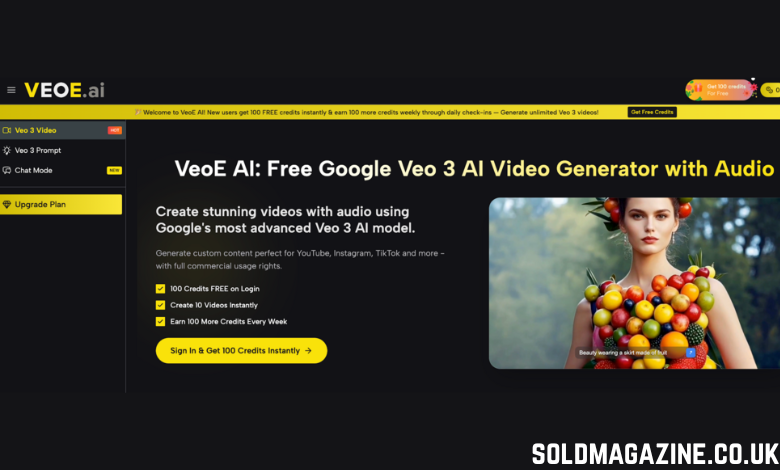
Why it’s #1: VEOE Veo 3 is designed around the most common creator problem: “I can’t write good video prompts.” Instead of forcing prompt engineering, it gives you multiple ways to start and refine:
What makes it stand out
- Veo 3 Prompt hub: prompt examples + an AI prompt generator workflow for faster “copy → paste → generate” starts.
- Chat-to-Video “AI video agent”: a conversational workflow for generating and refining videos through natural language (less prompt formatting, more direction).
- Credits-based access + watermark-free download: the pricing page explicitly highlights downloading without watermark as part of the plan.
Best for
- Creators who want a prompt generator + templates to reduce failure rate
- Marketers who need fast drafts and variations
- Anyone who prefers chat-based direction over prompt writing
- Google Gemini
If someone wants the most “official” route, Google’s own apps and tools are the obvious pick.
Why it’s a top platform
- Gemini offers video generation with Veo 3.1 (and “videos with sound” messaging).
- DeepMind positions Veo 3 as generating audio natively (SFX, ambient noise, even dialogue).
- Google’s Flow (a Veo-powered videomaking tool) has expanded into more Workspace plans, and supports assembling clips into longer sequences.
- Google has publicly described Veo 3.1 being usable across Gemini, Flow, YouTube Shorts, Gemini API, Vertex AI, and Google Vids.
Best for
- Users who want native Google integration (Gemini / Workspace / Vids / Flow)
- Teams already paying for Google plans and wanting “inside the suite” workflows
- Leonardo.Ai
Leonardo is positioning itself as a platform where Veo 3 is “available on Leonardo,” with messaging around affordability and broader creative tooling.
Why it’s in the top 3
- It’s a strong “creator platform” where Veo 3 sits alongside other generation capabilities.
- Leonardo explicitly markets Veo 3 availability on its platform, and discusses cost entry points and positioning vs Google’s platforms.
Best for
- Creators who want Veo 3 but also want a larger creative suite around generation
- People who want to experiment across multiple models/tools in one place
How to use Veo 3 on VEOE
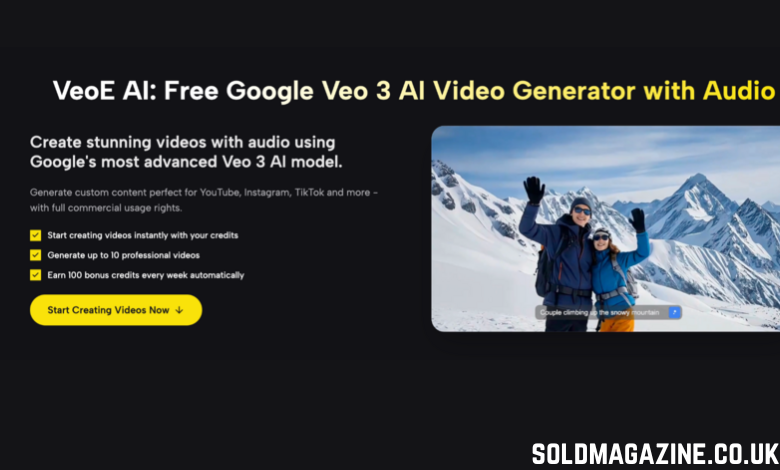
Below is a practical, low-friction workflow based on what VEOE exposes directly in its UI: text-to-video, image-to-video, 16:9 / 9:16, seed, public visibility, and clear credit cost per generation—plus the ecosystem around it that reduces trial-and-error: Chat Mode (AI video agent), prompt examples / prompt generator, and an Assets library that preserves your creation DNA.
Step 1: Choose your input (Text-to-Video or Image-to-Video)
On VEOE’s Veo 3 generator, you can select Text to video or Image to video.
Quick guidance
- Use Text-to-Video when you want maximum creative freedom and quick experiments (hooks, ad angles, mood tests).
- Use Image-to-Video when you already have a reference frame (product photo, character, scene mood) and want the output anchored to that look.
VEOE advantage: If you’re not confident writing prompts, don’t start from scratch—use VEOE’s Veo 3 prompt examples / prompt generator to get a strong baseline prompt you can copy, then generate from there. This is the fastest way to reduce “random” results on the first run.
Step 2: Set format and control
Before generating, choose the settings that reduce rework:
- Aspect Ratio: pick 16:9 for YouTube/cinematic framing, or 9:16 for Shorts/Reels/TikTok.
- Seed (optional): if you’re iterating and want more reproducible variation, set or reuse a seed.
- Public Visibility: decide whether your generation is public.
- Check the Required Credits shown before you click generate (for example, 10 credits per generation depending on the option).
VEOE advantage: You can start testing immediately with new-site benefits—log in to get 100 free credits, and weekly check-ins can add more credits. That makes it easier to iterate without feeling “credit pressure,” especially when you’re dialing in a new style.
Step 3: Generate and Downloand
Click Generate video, review the result, and iterate with small changes.
Two efficient iteration methods
Prompt iteration (generator mode): keep ~80% of your prompt stable and change one variable at a time (pacing OR lighting OR camera motion). This prevents the whole video from drifting.
Chat iteration (agent-style): if you want a simpler refinement workflow, use VEOE’s Chat Mode—an AI video agent approach where you refine outputs through natural language, e.g., “make the pace faster” or “add more dramatic lighting.”
VEOE advantage: When you get a usable draft, VEOE’s pricing highlights watermark-free downloads, including in the free plan section—so you can share drafts with teammates/clients without extra steps.
Extra pro tip (VEOE-specific): After you find a good result, save it into your workflow using the Assets library, which is designed to preserve your “creation DNA” (prompt, parameters, iteration history). This makes it much easier to reproduce a winning style across a series instead of rebuilding from scratch.
Conclusion
Don’t Let Workflow Kill Your Creativity Veo 3 is a powerful engine, but it’s only as good as the platform you drive it with. Why waste hours fighting with complex prompts when you could be generating usable clips?
VeoE offers the shortest path from a vague idea to a polished, watermark-free video. The model is ready, and the learning curve has been removed—so claim your 100 free credits, skip the frustration, and start creating today.