Converting OST file to PST is a straightforward process. You can do this by using the Outlook’s Import/Export wizard feature. But this feature works only if you have access to your original Outlook profile (associated with OST file).
What if your Outlook profile is deleted? Can you convert your OST file to PST after Outlook profile deletion?
Read this post to know the answer to these questions. In this, you will know the safe and secure method to convert OST file into PST after Outlook profile deletion.
What are OST and PST Files?
Microsoft Outlook uses two primary data file formats: OST – Offline Storage Table and PST – Personal Storage Table. When you set up your email account with Exchange, IMAP, or Microsoft 365, it can create an OST file. This file stores a cached copy of your mailbox items on your local device and allows you to work offline. The OST file is linked to the profile in which it is created, which means it cannot be opened or import in any other profile.
On the other hand, a PST file is created when you configure your Outlook with POP3 account. Unlike OST, PST file is easily transferrable and portable. It is also used for backup, archiving, or storing your mailbox data locally.
How to Convert OST File to PST after Outlook Profile Deletion?
As already mentioned above, the OST file is linked to the profile in which it is created. If your OST file is deleted, then it becomes orphaned and you will not be able to open or access it in Outlook. To convert such an OST file, you have to take the help of a professional OST to PST converter tool, such as Stellar Converter for OST. This tool can convert orphaned and inaccessible OST files to PST with 100% precision and data integrity. It can also save the OST file items in different formats, such as MSG, EML, HTML, etc. It has a user-friendly interface that makes the conversion process smooth. Some highlighting features of this tool are:
- Detects OST files from the default location automatically.
- Converts OST file of any size with precision.
- Extracts all items, including emails, attachments, contacts, calendars, tasks, notes, and journals.
- Supports batch conversion of multiple OST files.
- Option to convert specific emails or folders.
- Offers a detailed preview of mailbox data after conversion.
- Supports conversion of encrypted OST file.
- Option to auto-split large converted PST file.
Now, let’s see how to use this tool to convert an OST file (after profile deletion) to PST.
- Go to the official website of Stellar Converter for OST.
- Download and install the software.
- Open the software.
- The software will display two options: List Profile and Choose Manually.
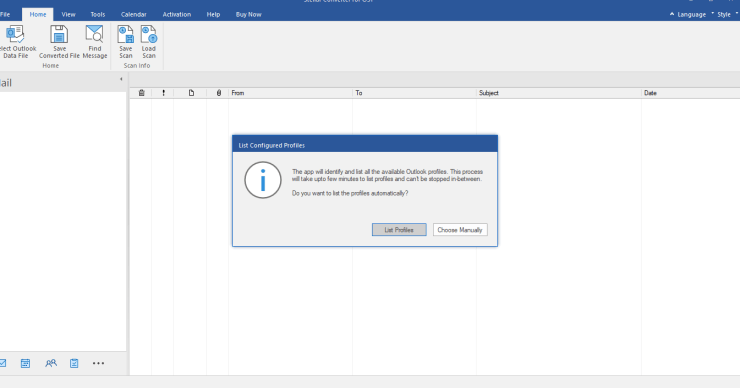
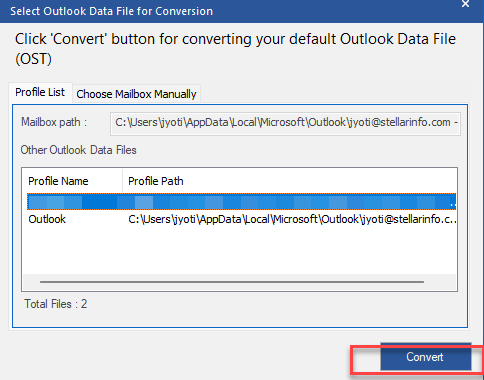
- Click on Choose Manually option to select the OST file.
- After conversion, the software will display all the mailbox items in three-pane window.
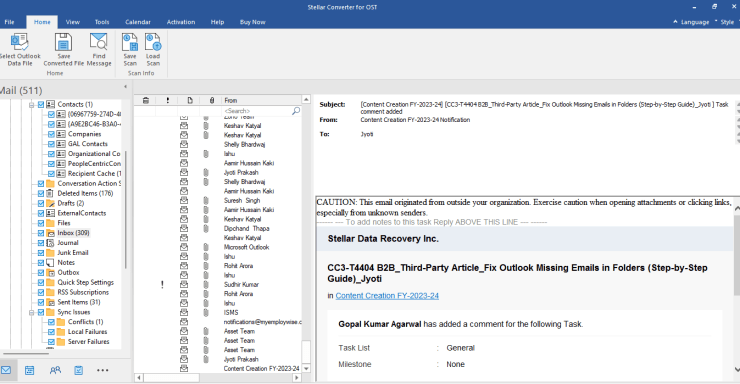
- Now click on the Save Converted File option.
- Choose the file format as PST.
- Select the desired destination to save the converted PST file.
- Then, click OK.
Once the conversion is complete, you can import the PST file into any Outlook to access the mailbox data.
Conclusion
As mentioned, you cannot convert the OST file using the Outlook options when your profile is deleted. To convert such an OST file, you need to use a professional OST to PST converter software, such as Stellar Converter for OST. This tool effectively converts orphaned and inaccessible OST files to PST and other file formats. It also maintains the folder structure and other details, like metadata, after conversion. You can free download this OST to PST converter software to evaluate its functionality.